
Kling Image to Video: Animate Photos & Use Start/End Frames
See real product, portrait and couple photo-to-video results with Kling 3.0. Use motion prompts, start/end frames and clear credit costs to plan your first short clip.
Last updated: 2026-11-07
Create with your own image
Choose a motion, add your image and review the settings and credit estimate before sending.
These editable motion prompts are starting suggestions. The videos below show the original sample prompts, not results tested with your image. Selecting a motion does not start generation.
Check the free video trial conditions
With Kling AI 3.0 image to video, use a product photo, portrait or illustration as the opening frame, then describe what should move. This guide covers Kling 3.0 Standard on SceneOak: 3–15 second clips, an optional end frame and audio generated with every render. The model picker shows what is available before you generate.
Need a new still image instead? Image to image changes a picture; image to video adds motion. This creator produces videos. For background or style edits, finish the image in a separate editor first. Our image-to-image vs image-to-video comparison explains which workflow fits your result.
Choose a motion above to prepare your own image, or select Use my own image beside a result below. Create with this sample image still loads the original sample image, prompt and 5-second settings in the workspace. Loading a sample does not start generation. When you send, generation uses credits.
Sign in (or create a free account) to use the sample or upload your image. New accounts get 500 credits, valid for 5 days. A default test uses 350 generation credits + 10 message credits; check the estimate before sending.
Product photo: a gentle camera push-in
This synthetic, unbranded amber bottle was generated with Seedream 5 Flash, then animated directly with Kling 3.0 Standard, 5 seconds, 16:9, audio on, on 23 October 2026. The English prompt shown is the one submitted; the Chinese page translates it.
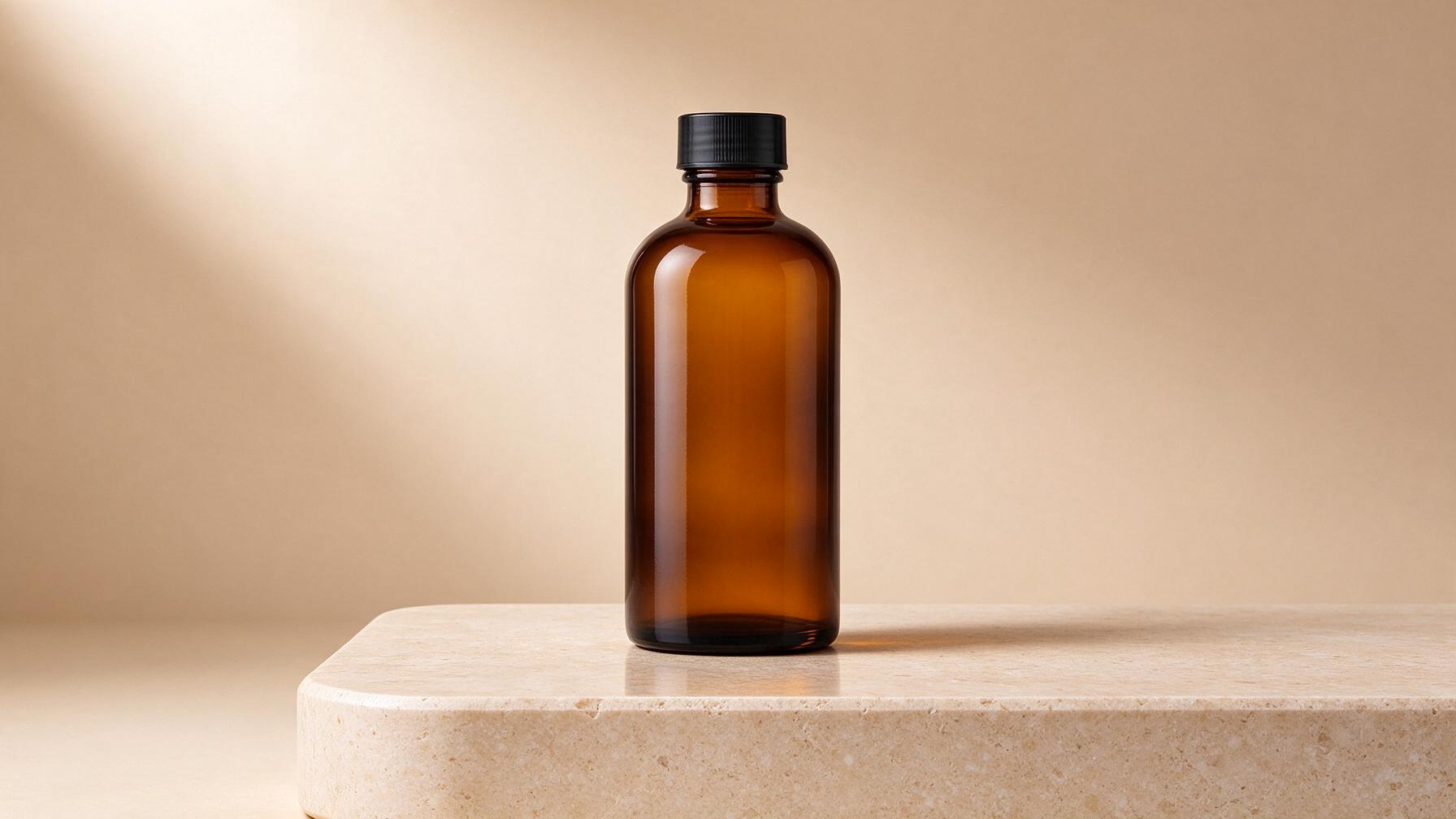
Input · original opening frame
Output · Kling 3.0 Standard, audio on (unmute to listen)
Amber bottle product
Kling 3.0 Standard · image to video · 5 s · 16:9 · audio on · Oct 23, 2026 (JST)
View the opening frameCreate with this sample imageUse my own imageReplace the sample with your own image in the workspace. Nothing renders until you send.
A subtle slow camera push-in toward the empty amber glass bottle. The bottle and its black cap remain completely still and keep their exact original shape and appearance. Constant soft studio lighting and an unchanged beige background. The glass bottle stays empty: no liquid, no filling, no pouring, no moving lines or bands inside the bottle. No rotation, no new objects, no text, no scene change. One continuous shot. Quiet room ambience, no speech or music.
Try 1 five-second Kling 3.0 clip with 500 free signup credits. Credits valid 5 days; email verification required. No card, never auto-charged. Cannot be combined with the free first video.
Observed: the camera moves gently closer while the bottle and cap remain stable. This is the second attempt: the first produced an unwanted liquid line inside the glass. We changed the prompt to specify an empty bottle and constant lighting. This sample does not verify preservation of a real brand, printed label or fine text. Replace the image with your own product and inspect its details before using the result.
Portrait and couple photos: real 5-second results
These three input images depict synthetic adults, generated with Seedream 5 Flash. We then animated each image using Kling 3.0 Standard, 5 seconds, 9:16, audio on, on 23 October 2026. They show animation of a generated image, not identity-preserving edits of a real person's selfie. The displayed English motion prompts are the ones submitted; the Chinese page translates them.
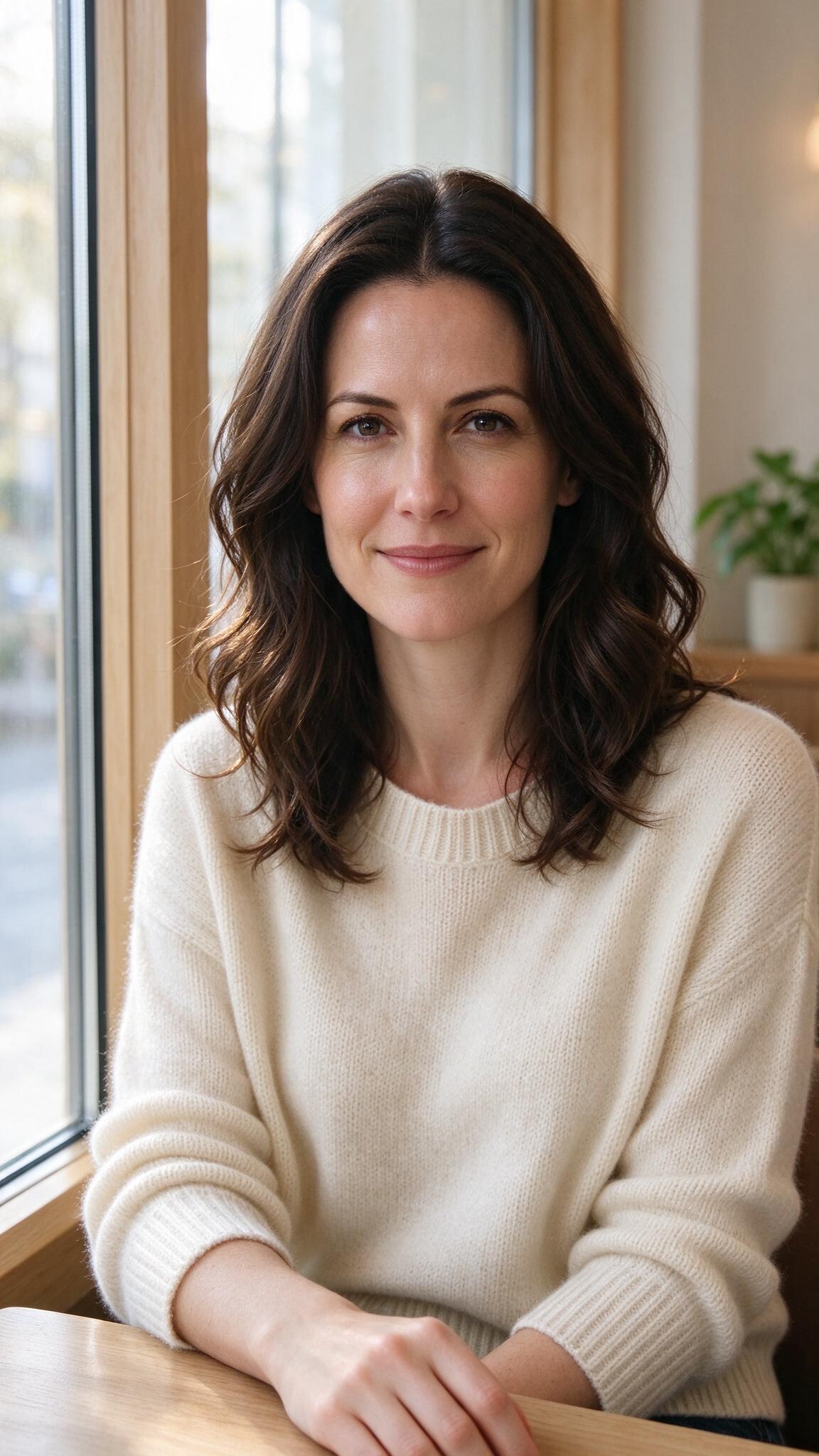
Input · original opening frame
Output · Kling 3.0 Standard, audio on (unmute to listen)
Window-light portrait
Kling 3.0 Standard · image to video · 5 s · 9:16 · audio on · Oct 23, 2026 (JST)
View the opening frameCreate with this sample imageUse my own imageReplace the sample with your own image in the workspace. Nothing renders until you send.
The woman blinks naturally and turns her head slightly toward the window. A few strands of hair move gently. Keep the camera still and preserve her face, clothing and background. One continuous shot, no cut. Quiet cafe ambience, no speech or music.
Try 1 five-second Kling 3.0 clip with 500 free signup credits. Credits valid 5 days; email verification required. No card, never auto-charged. Cannot be combined with the free first video.
Observed: the subject blinks, briefly closes her eyes and turns toward the window. The movement is subtle; this is not a talking portrait.
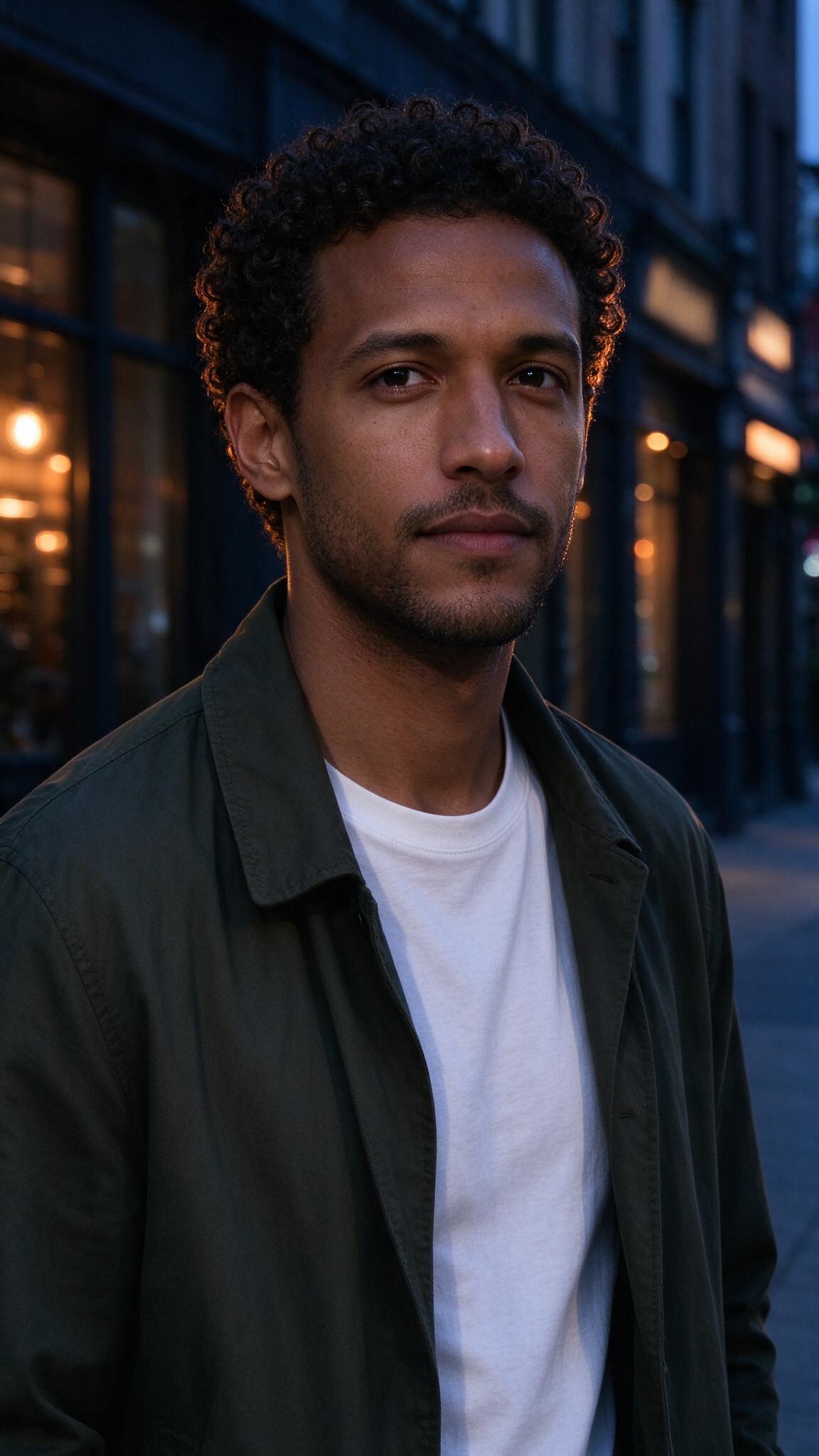
Input · original opening frame
Output · Kling 3.0 Standard, audio on (unmute to listen)
Blue-hour street portrait
Kling 3.0 Standard · image to video · 5 s · 9:16 · audio on · Oct 23, 2026 (JST)
View the opening frameCreate with this sample imageUse my own imageReplace the sample with your own image in the workspace. Nothing renders until you send.
The man takes a slow breath and turns his gaze gently toward the camera. The camera makes a very subtle push-in. Keep his face, jacket and street background consistent. One continuous shot, no cut. Soft distant city ambience, no speech or music.
Try 1 five-second Kling 3.0 clip with 500 free signup credits. Credits valid 5 days; email verification required. No card, never auto-charged. Cannot be combined with the free first video.
Observed: the camera moves slightly closer and the gaze shifts. The lips also move a little, although the prompt did not request speech.
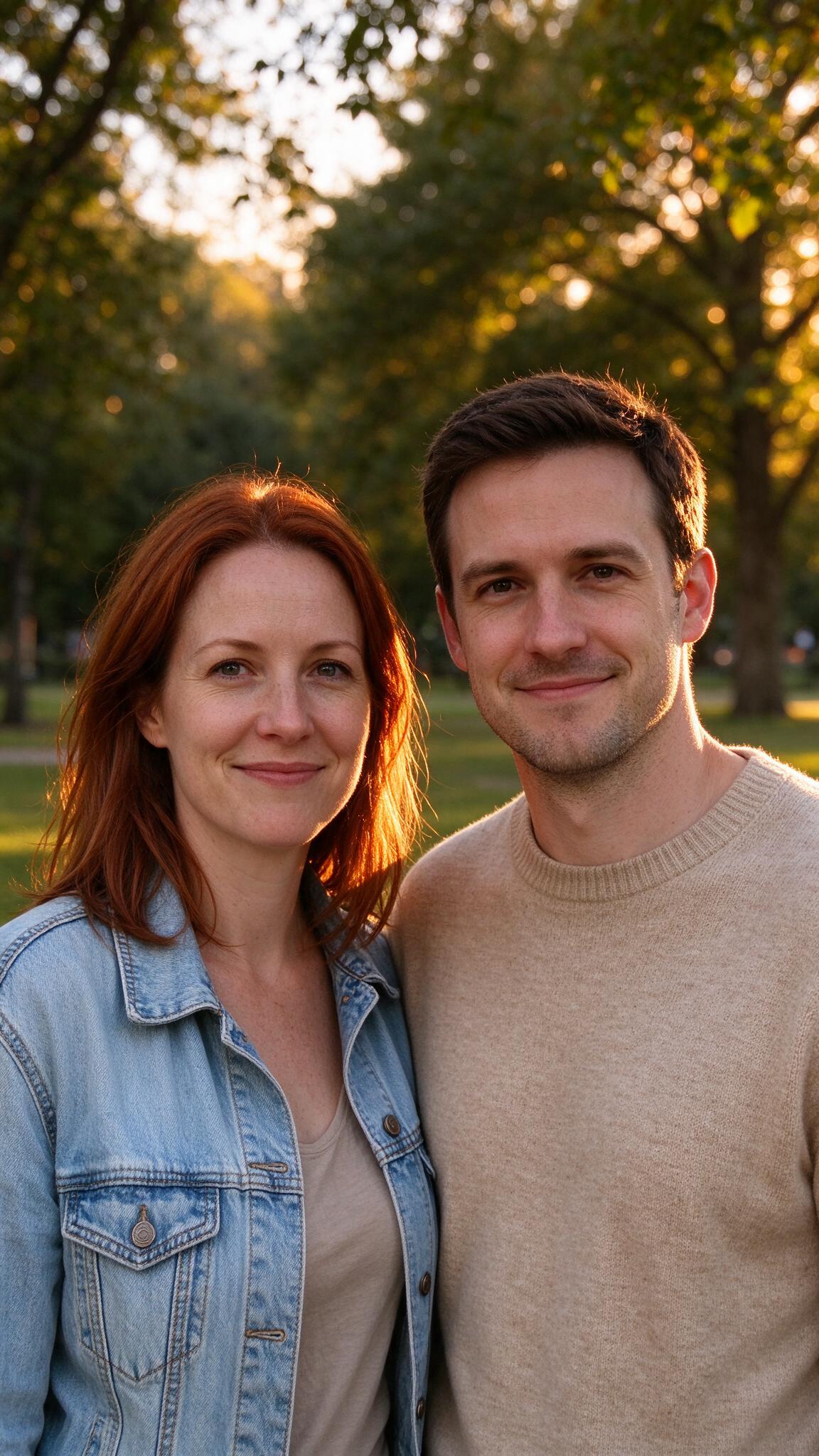
Input · original opening frame
Output · Kling 3.0 Standard, audio on (unmute to listen)
Golden-hour couple photo
Kling 3.0 Standard · image to video · 5 s · 9:16 · audio on · Oct 23, 2026 (JST)
View the opening frameCreate with this sample imageUse my own imageReplace the sample with your own image in the workspace. Nothing renders until you send.
The couple exchange a small smile and lean slightly closer together. Leaves in the background sway gently. Keep both faces, clothing and left-right positions consistent. The camera stays still. One continuous shot, no cut. Soft park ambience, no speech or music.
Try 1 five-second Kling 3.0 clip with 500 free signup credits. Credits valid 5 days; email verification required. No card, never auto-charged. Cannot be combined with the free first video.
Observed: the couple lean closer while mostly facing the camera. The requested glance at each other is not clearly reproduced.
These show small movements, not a guarantee of exact face preservation. Inspect faces throughout the clip, especially during a turn. Keep both people visible in a couple shot and start with one shared photo; two separate selfies are not automatically merged. For stylized characters and other scenes, see the full video showcase.
Looking for a new photo style first? Use Prompt Seen portrait and couple-photo prompts, or see what free signup credits cover.
Kling 4.0 image to video or Kling 3.0: which version is available here?
Both are available on SceneOak. Kling 4.0 has been offered here since 26 October 2026; Kling 3.0 stays the default, and you pick Kling 4.0 in the model picker. This tutorial uses Kling 3.0 Standard: the settings, credit costs and showcase clips below all refer to Kling 3.0. Every clip in your library is labelled with the model that rendered it.
Kling 4.0 launched on Kling's own platform on 15 October. Its official documentation describes image-to-video and up to 10 keyframes, with generation up to 30 seconds. Kling 4.0 image to video on SceneOak takes an opening frame and an optional closing frame, for a 3–30 second clip at 720p or 1080p; the aspect ratio follows the image and audio is always generated. It costs 100 credits per second at 720p and 140 at 1080p, so a 5-second 720p clip is 500 credits plus 10 for the message. Up to 10 keyframes is an official Kling 4.0 capability that this site does not offer; with Kling 3.0 here, clips run 3–15 seconds.
Sources checked on 22 October: Kuaishou's launch announcement and Kling's official guide. For editing an existing video with Kling 4.0, see the Kling 4.0 overview and video editing section.
How to use Kling 3.0 image to video
- Choose a motion in the creator above, or open the workspace. The three motion choices prepare Kling 3.0 Standard and 5 seconds. You can edit the prompt and settings before sending.
- Attach your starting image. Use the attachment control to upload a JPG, PNG or WebP. Wait until the upload completes. A clear subject and the crop you want in the final video make a useful starting point.
- Describe motion, not just appearance. Say what the subject does, how the camera moves and what should remain unchanged. For a first attempt, use one action and one camera move.
- Choose a short test. Start at 5 seconds with Standard settings. Audio is generated with every Kling 3.0 render; the cost is fixed per second, so you know it before sending.
- Review the result. Check the model label in your library, subject shape, camera movement and final frame. Revise one instruction at a time; each new render consumes credits again.
Prepare your image before animating it
- Finish visual edits first. Remove unwanted objects or change the background in an image editor, then upload the finished picture. Motion prompts are not a reliable substitute for still-image editing.
- Choose the crop before uploading. This Kling image-to-video workflow follows the source image's framing. Leave room for a moving subject instead of cropping tightly around the face or product.
- Check small details. Inspect faces, hands, labels and logos in the source. Start with one clear subject and one movement; the real samples above show both successful motion and limitations.
- Use a supported file you have permission to upload. Attach a JPG, PNG or WebP and wait for the upload to finish. Cropping, compression and format conversion can be done in your usual image editor; they are separate from generative image editing.
If the photo already looks right, go straight to the motion prompt. For a style change followed by animation, see the edit-first, animate-second workflow.
Kling 3.0 image-to-video prompts you can adapt
These are suggested starting prompts, not tested output claims. Use your own matching image and keep the first attempt simple.
For prompts with actual rendered results, browse our Kling 3.0 prompt examples. Image-to-video examples also include the opening frame, so you can see both the source image and the motion it produced.
Product photograph
Keep the product and its label unchanged. Move the camera slowly closer while a soft highlight travels across the surface. The product stays still. One continuous shot, no scene change.
Portrait
The person blinks naturally and turns their head slightly toward the window. Keep the camera still and preserve their face, clothing and background. Use subtle motion without a cut.
Landscape or illustration
Keep the composition fixed. Let the clouds drift slowly and the foreground leaves sway gently. Preserve the original illustration style. No new objects and no sudden camera movement.
Use a start frame and an end frame
Attach two images in order: the first is the opening frame and the second is the desired ending frame. In the message, explicitly identify them as the start and end, and describe the transition between them.
Use the first attached image as the start and the second as the end. Move the camera slowly between these views in one continuous shot. Keep the subject and lighting consistent.
For a first test, use the same subject, similar framing and compatible lighting in both images. An end frame guides the destination; it does not guarantee a perfect interpolation. Start and end frames are not two interchangeable character references, and this workflow does not join two existing video files.
If the transition distorts, reduce the change between the two frames or try a single starting image. If you want a longer story, generate separate shots and edit them together.
Settings and credit costs
| Setting | Kling 3.0 on this site |
|---|---|
| Input | One starting image; a second image can specify the ending frame |
| Clip length | 3–15 seconds per render |
| Model tier | Standard |
| Framing | Image-to-video follows the source image; crop it before uploading |
| Audio | Generated with every render (not switchable); review voices and sounds before publishing |
| Example cost | 350 credits for 5 seconds; 700 credits for 10 seconds; plus 10 credits per chat message |
The examples above use the same credit calculation as the app. A new attempt is a new render, so leave room for revisions. The workspace stops you before a render your balance cannot cover; check current plans before generating. There is no promise of unlimited free generation; see what Kling AI's free plan and our signup credits include.
Common questions
Is this an image-to-image generator?
No. This creator turns a starting image into a video, rather than returning an edited still picture. For a new background, photo style or other still-image change, use a separate image editor first. Our image-to-image vs image-to-video guide compares the inputs, outputs and prompt styles.
Why does my photo barely move?
Ask for a visible action rather than repeating what is already in the picture. Start with a small head turn, moving clouds or a gentle push-in. If you ask for everything to remain still, little motion may be the correct result.
Why does the face or product change?
Large movements, occlusion and many simultaneous instructions can make the result harder to control. Try a shorter clip, a clearer source image and less motion. Review fine details such as hands, text and logos before using the output.
Can I animate a couple photo or two separate selfies?
Start with one finished photo showing both people. Keep the motion small and both faces visible. If you have separate selfies, first prepare a combined image in an image editor; attaching two files here means start and end frames. Our Prompt Seen photo prompts can help you choose a style before making the video.
How does this compare with SnapGen?
SnapGen also advertises image-to-video and lists Kling models. Our SnapGen AI comparison explains the verified overlap, billing differences and reasons to try a conversation-based workflow.
Make your first short clip
Start with one image and one movement. Choose Kling 3.0, note the credit cost and review the result before making a longer version.
Open the workspace and upload a photoNeed help with an upload or a render? Contact support after signing in.